You’re listening to The Piano Pantry Podcast, your place for a reliable dose of practical and sustainable rhythms for your everyday teacher life.
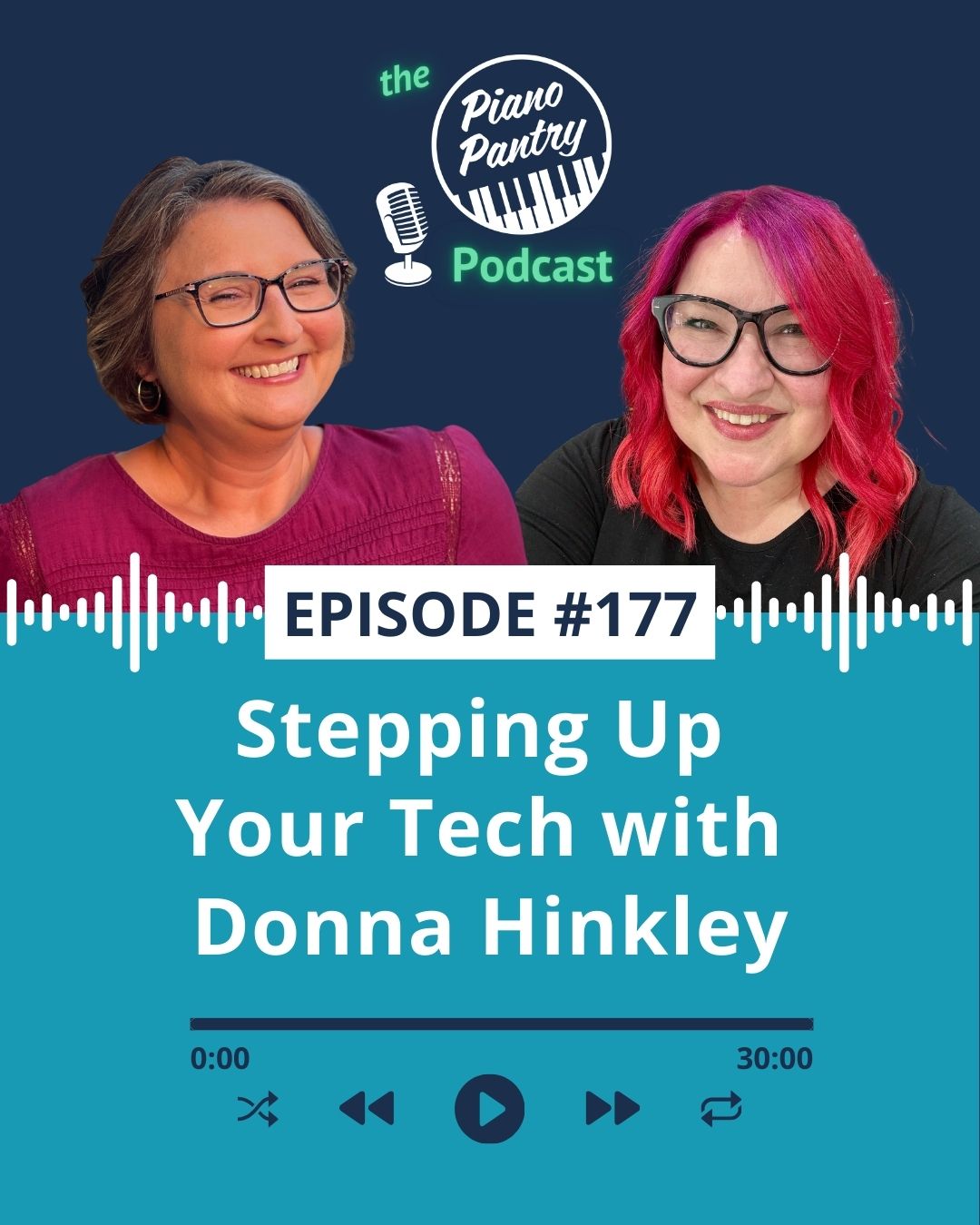
I’m Amy Chaplin, a piano teacher with a proclivity for all things organization. Today, in episode 177, I’ve enlisted a teacher friend to help share ideas that will help inspire a few ways you might consider stepping up your tech.
You don’t have to do it all, just consider what you might need in this moment and filter your ears from there. Enjoy my conversation with Donna!
Amy:
Welcome Donna to the Piano Pantry podcast. Would you mind just going ahead and introducing yourself? Let us know how long you’ve been teaching and what your current studio looks like.
Donna:
Yeah, sure. Thanks Amy. Thanks for having me. I’m really excited to be here today. So I’m in Victoria in Australia, so I’m about one hour west of Melbourne.
I’ve been teaching for, I think it’s just over 25 years now, which. Has just gone so quickly, like that feels like such a big number. And I teach from my home studio, so I’m lucky enough to have a space that’s separate to my house in our front yard.
I teach a mix of one-on-one lessons and rotating lessons and I work with a lot of neurodivergent students, which I really love being able to do as well.
Amy:
You have a wonderful space. I can see it behind you, and it looks like a really great, dedicated, fun space to be in.
Donna:
It is, and I walk in, when I walk in every day I just feel really grateful ’cause yeah, I love being able to be in here. It’s a fun space to teach, but it’s also great to have it not in my house.
Amy:
I imagine when it feels fun for us, it feels great for our students too.
Donna:
Yeah, and I think they like feeling that it’s their space rather than, they’re coming into my house— because I have kids and a husband, you can hear the household background. Whereas now this is just purely the lesson space.
Amy:
So a little background – I think that I knew of you vaguely as a teacher for a while and you might have even been like on my email list, I’m not totally sure, but like you said, we started having more direct interactions over the last couple of years. You first took that workshop that Joy Morin and I do on Notion — I think it was the first one we ran, it was March, 2024, and then the following year you joined one of my winter sessions of the digital organization coaching.
Both of those workshops have teachers of varying tech levels but I would say you definitely stood out as one that was pretty tech confident when you communicated with Joy and I following the workshop pretty quickly, trying to figure out how to turn a database into a to-do list. To make things like auto disappear when you check them off. I was like, this girl knows what she’s doing.
We’ll talk more about that kind of stuff later on in the podcast but that’s why I wanted to have you on because I knew you were not just a tech savvy person, but you weren’t afraid to play around and to just have fun playing with different features.
So would you just mind giving us a quick rundown of some of the ways that you are currently using technology to support your teaching and just your everyday teacher life?
Donna:
It’s funny because when I was thinking about this list, it’s grown so much and now I actually realize how much I rely on tech, but also what a big difference it makes.
Currently I use my music staff, so that’s my studio management software. So it does my invoicing, automatic payments, scheduling and reminders, studio wide emails and all of that type of things.
Then I use practice space for communicating practice assignments to students. So I love that ’cause I can send video links, PDFs, and things like that, but students can also message me through the week. And so sometimes that connection during the week is helpful, whether it’s a student who has a question about their practice or whether it’s someone who just feels that they need to be in touch—like a week can feel a long time for a little kid. And I also use that for sending assignments if a student can’t attend their lesson. So that’s been really helpful.
Google Chrome using the group tabs is something that I really love that just helps me keep everything really organized. Before using that, I would have too many tabs open to even count them.
For online lessons, I use Zoom, and then to help with that, I also use ManyCam and Classroom Maestro. So it just helps give a better display for my students. And then of course, I use Notion, which I, as I get more familiar with it, I use it more and more I just find there’s so much of what I do is now in my notion workspace and it just is a great way to help me keep everything really organized.
Amy:
Of course I’m excited to talk more about that, but we’re gonna put that on the back burner first and talk about some of the other things.
So Chrome tab groups was one that captured my eye a few years ago, and I have to admit, I started to use it and I tried to use it and it never caught onto me.
But I think it’s an awesome feature and I’m trying it again. I don’t know why I couldn’t get it in my head the first time, but could you just maybe describe to someone what it actually does or what it even is if they’re not familiar with what tab groups are?
Donna:
Sure.
When you have I would do have multiple tabs open you can actually group them into an intrest group. So I have permanently, I have a personal group which will have my personal email and my personal calendar. And anything that I wanna be following up fairly soon. And then I have the same for my business again, the emails calendar and anything that I need to be following up on soon.
And I also have a student tab, which is just for everything that I wanna have open while I’m in lessons. So that’d be my music staff practice space and things like that. It just means that I can collapse them when I am not using them. So it keeps those things out of my mind when I want to be focused somewhere else. But also then when it is time to actually look at those things, I just click the tab and it opens up and everything is there. I don’t have to go and reopen everything.
But I’ve also found it really helpful when you do a deep dive into a topic or I know some of us talk about going down a rabbit trail and I end up with all of these tabs open, but then it’s it’s time to go and pick someone up from the station or my student’s about to arrive and I’ve gotta stop.
I don’t wanna lose all of those tabs that are open, but I also don’t wanna leave them open so I can add them to a group. And I can actually even close the group so it’s not displayed at the top of my screen at all, and I can just open it again when I’m ready to get back to it later.
Amy:
So it’s a way of allowing us to have 30 tabs open without really having 30 tabs open. LOL Is that right?
Donna: Yeah. But I would think 30 is not such a big number compared to…. I’ve had well over 30 tabs open.
Amy:
Really? Oh goodness!
Donna:
Yeah. So that’s why it’s been so very helpful for me.
Amy:
Oh, for sure. And I think…doesn’t it always also, like when you create this group, it puts almost like a button in your bookmark toolbar at the top so you can click on it from there. Is that right?
Donna:
Yeah, it does. And you can assign different colors to them as well. So yes, you can make it, you can make it look pretty, but also it’s easy to spot quite quickly. You’re not trying to read all these small tabs with, small font and all in gray.
Amy:
So do you do just the same color for all of them, or do you do multi colors a different color for each one?
Donna:
I do different colors. So I have, it’s so funny, let me just double check. I have personal is pink. Business is purple ’cause that matches my colors and students is blue. And then I will try and do other things depending, save other colors for other things then.
Amy:
I do similar things like in my email. Like I always try to keep green for my studio because that’s my studio logo color is green. And then I do anything that’s Piano Pantry in blue because that’s the color of my logo. And yeah, so just trying to keep some kind of commonality.
So whether it’s my email, whether it’s my chrome tabs, whether it’s a file folder or something, trying to keep those same colors.
I started using it again and the main thing I’m using it for right now is having two different email accounts because I used to do all my emails in one account, like I had my basic at Gmail account forwarded into my at Studio88 piano.com.
And I also send from at pianopantry.com from the same account, but it just got to be too overwhelming to have both of them in the same place. And then one of them that I was having forwarded. You couldn’t actually reply from that email. So it was confusing people what my actual email address was. So I finally separated them out and oh my gosh, I can’t believe what a relief it has been.
I always thought I would hate having multiple inboxes, but I actually really like having them separated because now one of my emails is dedicated to just communication. And then the other one is where like all my subscriptions are at, so I don’t have to worry about looking at that one quite as much.
But every time I open a new tab to go to it, you have to select a different Google account. So using the tab groups has allowed me to keep both of them open, and then I just collapse it. And I keep my calendar in there too. And it’s so nice. I’m like, what was my problem? Why have I not been able to use this sooner? I don’t know why.
Donna:
I think that’s actually why I started doing them for the same reason, wanting to keep my emails in particular separate because otherwise inbox can just be so overwhelming. And then if you like, this email is about one of my kids. This email is about a personal appointment that I have, and then there’s a, an email from a parent under that to be able to keep them separate.
And like you said, it’s clear to. Or it’s easy to reply to from the account that you are in. And it’s, yeah just open the tab and it’s all there.
Amy:
Next, let’s just chat a little bit about your Zoom lessons. I know you told me that you don’t do a ton of Zoom lessons. You have maybe one regular family, but you mentioned a couple of tools that you use that I think are interesting and I would like to hear a little bit more about, and I think teachers would enjoy hearing more about.
One of ’em was ManyCam. And actually I am not familiar with that. I don’t do Zoom lessons, so I am not completely up in all the online tech stuff. And then classroom Maestro, which I used in the past when I did group classes, but it’s been a few years. But I think it would be super helpful for teachers who don’t know about that, to hear a little bit of details.
So do you mind sharing on those?
Donna:
Sure. Many Cam is just a program that allows me to have multiple cameras and views. Set up on one screen, so when I’m in Zoom, instead of having to switch between cameras, I can have everything showing up all at once. So my favorite setup for online lessons is to have an overhead view of my piano keys with a webcam at the bottom, and then just a zoomed in display from classroom maestro of the piano keys and then just my face webcam, which also then shows my side view at the piano at the top. But I can also put in other desktop displays from my computer or from my iPad.
So it’s just, but it’s really helpful to have it in one screen, because otherwise if you share your screen in Zoom, of course, then we just get the little thumbnails.
So it’s nice to be able to have that as my entire screen, particularly when I’m working with beginners in Zoom lessons. And so Classroom Maestro has been really helpful. So it actually connects to a MIDI keyboard, so I have an acoustic piano, but it has the Yamaha silent function, so it also works as a digital piano.
So that’s connected and it does so much more than what I use it for. But I use Classroom Maestro to just show a display of the keyboard again. But it’ll actually light up the keys that I’m playing. Particularly with beginners, it can be tricky to say this, to show them. And even with an overhead view of your hand, they can’t always see exactly what key you might be playing. So having them be able to see that key light up has been really helpful. As I said, I know the program does a lot more than just that, but it’s worth it for me for that small part that I use it for.
Amy:
So ManyCam allows you to not have to log in from multiple devices to show multiple different things, right?
Like you can just be, have just log in and your one screen can have multiple things on that screen. Is that what I’m understanding?
Donna:
Yeah. So before that I would have a separate webcam and I would have to choose which camera. So students would either see my face or they would see my piano keys.
But the other thing is that you can set up multiple scenes or views. So I can have one if I’m just talking with a student where they can just see my face. And then I can have all the different ones with piano keys or a view from my desktop. And then in Zoom I just select ManyCam as the camera and I just need to tap on whichever scene in many cam I want.
So it’s really easy to switch.
Amy:
That’s super cool and in Classroom Maestro, does it still do where it will even highlight your pedal, like it’ll show which pedal that you’re using as well.
Donna:
Yes. So I usually crop that out in an online lesson unless I’m specifically teaching pedal. But if I’m recording a video for a student, I’ll often leave that in ’cause yeah, then they can see when I’m pedaling and things as well.
Amy:
You could even use like the staff display. So you could use like a staff or you can use the keyboard. And I actually use the staff I think a bit during COVID days lessons. Yeah. Like just for even quizzing note names and things like that.
Donna:
And I have seen other teachers use it like that. As I said, I know you can use so much more. I’ve just decided to focus on this just little keyboard display. But yeah, it works really well for me.
Amy:
Okay, so of course, like I said, the most exciting thing that I would like to dive in with you today a bit is to hear how you have been utilizing NOTION over the past year and a half after taking our workshop.
I’ve had chats with several teachers here on the podcast episodes 134, 135, and 136 we did several back to back a couple of years ago. And I will link to all those in the show notes. But the angle that I wanna take with you today is maybe a little different. I just wanna hear some of the unique and fun ways that you have been using Notion, especially in regards to databases, which is just one function in notion basically.
So just to give a quick primer to anyone that has no clue what we’re talking about. Notion is a productivity and note taking app that’s known as an Everything App because it supports so many different formats. Everything is built on basically two elements, pages, and blocks, and a block can be anything that you like.
It could be basic text, like a word function. It could be a heading, it could be a hyperlink. It could be an embedded PDF. It could be a map, an image, a bullet point to-do list, like anything that you want it to be. And one of those block options is called a database. And if you basically think of it like a spreadsheet, but it does function differently than a spreadsheet.
So each row of the database is an entry and you can actually open that entry as a page itself. So you can actually have content inside of that entry. And then every column of the database has a particular function to it. So you could say this column for every entry has to be a number, or it has to be currency, US dollars, or it has to be an image or a checkbox, or it could even be linked to another database. So you could call up information from somewhere else in your Notion account, and they actually can talk to each other. So that’s just a little primer for people on what Notion is and what we might be talking about here.
So would you go ahead and just describe for us some of the fun ways that you have been utilizing some of these features in your Notion account?
Donna:
Sure. The relations that you were just mentioning is something that I’ve really been exploring, particularly over the last 12 months. So I had a student database set up, and I just started by linking that to my to-do list, so that basically when I was in a lesson and in my student profile, I could add a quick note of something that I needed to follow up later in the week that would then automatically show up on my to-do list.
When I checked the to-do list later, there it was, instead of me having to scroll through all of my lesson notes from all of the lessons through the week. And then when that started working really well, I started to think about what else could I link to this student database? And so partway through last year, I started doing my lesson planning through this.
So I created a lesson planning database that I’ve linked to the student database. And so that’s great because I can view the lesson planning database and go by date. So I could view like an entire week of lessons or I can look from the student’s point of view and actually see all of their past lessons. And it was just helping me keep all of the information in one space instead of trying to find where it was.
But then I started to think about what else could I link? And I thought about a lot of the things that I was using Google Sheets for and of course then I’d have to remember where the Google Sheet is.
So now I also have set up a database that tracks the books and music and things that I buy for my students. So I provide all of that as an all inclusive tuition. But I still like to track how much, because I wanna make sure I’m on the right track with what I’m charging. Now that is a separate database that, again, is linked to the student.
Also for like resource series that I use. One as an example is rope repertoire, which I absolutely love. But I was having trouble remembering have we done this piece before? And so now I have a database set up with the rope repertoire pieces that I teach and I can put a link in the student database for the student to say, yes, we’ve done this one. Or I assigned it, but they didn’t finish it.
We’ve just started lessons back for our school year here in Australia and over my summer break I created a a studio wide challenge and I’ve also set up all of the tracking for that in Notion, so first week back this week I am just experimenting now with how it works, but it’s just really….it’s so good for my brain to have everything just in one space rather than this part’s in a Google sheet and this part is in a file somewhere else. And yeah, just to have everything in the one spot has just done so much for my feeling of overwhelm sometimes.
Amy:
Those are some really amazing ideas that you have for linking.
I’m sitting here going, so basically just to make sure that’s really clear for people, essentially what we’re doing with a database when it talks to another one, is it’s a way of allowing you to either pull information from a database that exists somewhere else without having to necessarily navigate to that database.
Or you can even add information to a database that’s somewhere else. So it can go either way, right? You have either a one-way relationship or a two way where you can, like you said, you either add something to a list or you pull information from it, right? Am I explaining that in a way that makes sense?
Donna:
Yeah, I think so. And you mentioned one way or two way relations. And I remember thinking what’s the difference? And I’ve just decided to just set mine up all as two way. Whether I end up using them that way or not, it just means it doesn’t matter which database I’m in. So if I happen to be in my to-do list and I wanna make a note for a specific student that I want to show up. I can do that from the to-do list, but I can also add it from the student database instead.
Amy:
Yeah, exactly. I love the idea that you were saying about tracking the, like the repertoire, like you have a repertoire list and then you can just keep track of which ones you’ve given everybody.
And this kind of stuff is also a way for us to not have to repeat the same information in multiple places in multiple ways, right? Like not having to necessarily write down the exact song list or whatever for five students when you can just recall something you’ve already typed somewhere else, basically.
Donna:
Yes, exactly. I think that was it. I was also finding myself, like you said, putting the same information in multiple times and just being able to have it there and then just add it for that particular student has been, it just time saving as I would struggle to think about how much time it saved me.
Now it probably, it’s taken some time to get it set up. But yes, now the through the lessons and in a busy teaching week, it’s all working fairly smoothly.
Amy:
So some fun ways that I’ve been using these relationships between databases to talk to each other in the last, I’d say year maybe, is I have a document that I do like my group class planning.
So in my database, every row is a different class. And then each column, like I have one column that talks to another database that has all of my, I don’t know, say, games in it. So it has every game that I own, and all I have to do is like start typing the name of that game and it will select it.
So it’s like I can plan a group class and recall all of my games that I have, or I then have another column that’s connected to all of my ideas for say like group musicianship activities, singing and moving, and just different oral skill types of stuff, and so I can then pull something from that.
And then I have a database that has a whole bunch of just fun music videos that I keep on my website and they’re free for teachers to access as well. And I use those a lot of times in group classes, like when students are first coming in and I just need something that will last three to five minutes while they’re all entering, and gathering together.
And a lot of the times it’s just like a fun music video is what I’ll play. And so then I can just easily pull up that huge list of videos and okay, we’ll play this one today. So that way I’m not constantly having to go look at all the, okay, what games do I have? What YouTube videos could I pull from?
What, wait, what activities could I do? And so you already have it there and it makes it so easy to lesson plan. So that’s one way I’ve been using it.
Donna:
That’s so interesting because I actually created a games database of all of the games that I have because I have a really large collection that I can’t remember otherwise. Would you believe that I hadn’t actually thought of linking that to my lesson planning and student database.
Amy:
See, we learn from each other!
Donna:
So guess what’s on my list to do this week?! LOL
Amy:
And the fun thing about that is like every game…so say you make a game as one row, it’s an item on your database, right?
So then you could even, you can tag that game as multiple things. So maybe it’s great for groups and then maybe one tag you add to it is, I don’t know…rhythm! And so then you can organize the different things that your games are for and whether it’s for single students or group class activities, or two students, different things like that. So all kinds of ways that you can categorize what you actually have and organize it within the databases.
Donna:
I think that makes it so easy to find, like I know I’ve categorized by level concepts. I don’t think I’ve done by number of players, but actually that would really be helpful, especially like you said when planning group lessons. So yeah I think I need to update that one.
Amy:
I’ve even gotten to the point in my like physical games where I had to separate the location of games that were just single player games that I could do in a lesson with a student versus games that were like only for group class that I couldn’t do because I was feeling overwhelmed. I think by having to always look through all the games for different things, and I’m like, okay, these have different functions, right?
This set of games is only good for me and the student and this set of games I need three to five kids to play it.
So, Donna, is there anything else that you would like to share about your experience with using Notion over the last year and a half, or about your experience with the workshop that you took as well?
Donna:
I’m so grateful for the Notion Workshop, so it might not seem like it now, but before I did the Notion Workshop, all I used Notion for was a to-do list, and it wasn’t like the to-do list that it is now.
It was just a basic to-do list with check boxes and I was…I had tried to get my head around databases and things and I just couldn’t get my head around it, even with exploring on YouTube and different tutorials. But doing the workshop actually really helped me see step by step how to do it and to be able to get my head around how that all works.
But I think the other thing that was so good is I just felt more comfortable to go and explore Notion. And so it’s where I am now has been like a gradual and gradually improving and tweaking my setup based on what I learn as I explore, but also what works in my studio.
But I think the other thing that the workshop was really helpful for it was, it really helped me see that it doesn’t need to be all finished right now. It’s actually okay that it’s a work in progress. And I think that shift in thinking has been really helpful.
But also I did the digital organization workshop last year, and my main reason for that was to get all of my files on my computer organized because they started off organized, but as I added more and more it was a bit of a mess. And so they’re much more organized now.
But the other thing that I was surprised at was, that wasn’t a goal for me in the sessions – like things like our other devices. So iPads and phones… it’s so funny because often I open those devices like now, and so…. how long is it since the digital organization workshop I did?
Amy:
A year and a half I think maybe.
Donna:
Yeah, but I still look at my devices now and go, oh, it just is so much more organized and less overwhelming.
Amy:
One question that I finally started asking two episodes ago when I asked, I had a teacher talk with Joy Morin, and I told her, I’m like “why have I never thought to ask this question to my guests?!”
I don’t know why I never did, but I love the question and it’s now gonna be a regular question, is…if you could add one item to my monthly Friday Finds blog posts that I do on the Piano Pantry blog, what item would you add to our Friday Finds?
Donna:
I recently, over our Christmas and summer break, added a cricket cutting machine to my studio and I just absolutely love it.
I’ve been able to create stickers for my students and displays and just being able to have them customize for exactly what I’m doing. It’s just been, it’s been actually a lot of fun exploring it, but it’s also nice that it’s tied into my teaching as well, so I reckon I’d suggest that one.
Amy:
Donna, do you have anything else that we didn’t chat about today that you would like to share with our listeners?
Donna:
What I think is interesting is I think I’ve only just started recently realizing how much tech I use and that I’m actually quite a techie person. If you’d asked me maybe six months ago, even though I was using all this tech, it probably wasn’t how I thought of myself. So I just think that…yeah, there’s quite a lot of tech that I use now, and I guess I am a techie teacher.
Amy:
You are, Donna! You are a techie. That’s why I came to you today. Thank you so much for being on the podcast today.
Don’t forget, Donna is actually going to now share with us some of these things on her screen. So if you would like an in-depth look, you can get access to this bonus content, which will be in my Patreon, and we’re going to go take a tour.
But for now, on the podcast, thanks for being here and thanks for sharing with teachers today.
Donna:
Thanks, Amy.
If you would like to learn more about what Notion can do for you like it did for Donna, I invite you to join a free webinar Joy Morin and I are giving on the day this podcast drops, Tuesday, February 10 from 12:30-1:00pm Eastern Time. We will be doing a special giveaway if you attend live and stay until the end. Visit PianoPantry.com/notionwebinar to register now. A replay will be available.
If you would like a tour of Donna’s Notion account, visit the bonus content section in my Patreon. PianoPantry.com/patreon. Join for just $7 and cancel at any time. Not only will you have access to a look at Donna’s account but there are video tours of 3 other teacher’s Notion accounts as well as a tour of how one teacher uses Google Classroom to manage her studio.
The next Organize Your Life with Notion workshop will be held February 27, March 6, and March 13, 2026 – three Fridays in a row from 12:30-2:30pm Eastern Time. Replays will be available. The early bird discount of $60 off is good through February 15, 2026. Use the code NOTION60 at checkout. Register at PianoPantry.com/notion
Also, if you would like to join the wait list for my digital organization coaching workshop Donna mentioned, visit PianoPantry.com/digitalwait. I’ll be announcing dates here in the next few weeks for the summer retreat version of this coaching.
Like always you can find all of these links and a transcript of this podcast episode at pianpantry.com/podcast/episode177.
Thanks for hanging out with me today. Be sure and hit that subscribe button and leave a rating and review. Ciao for now!